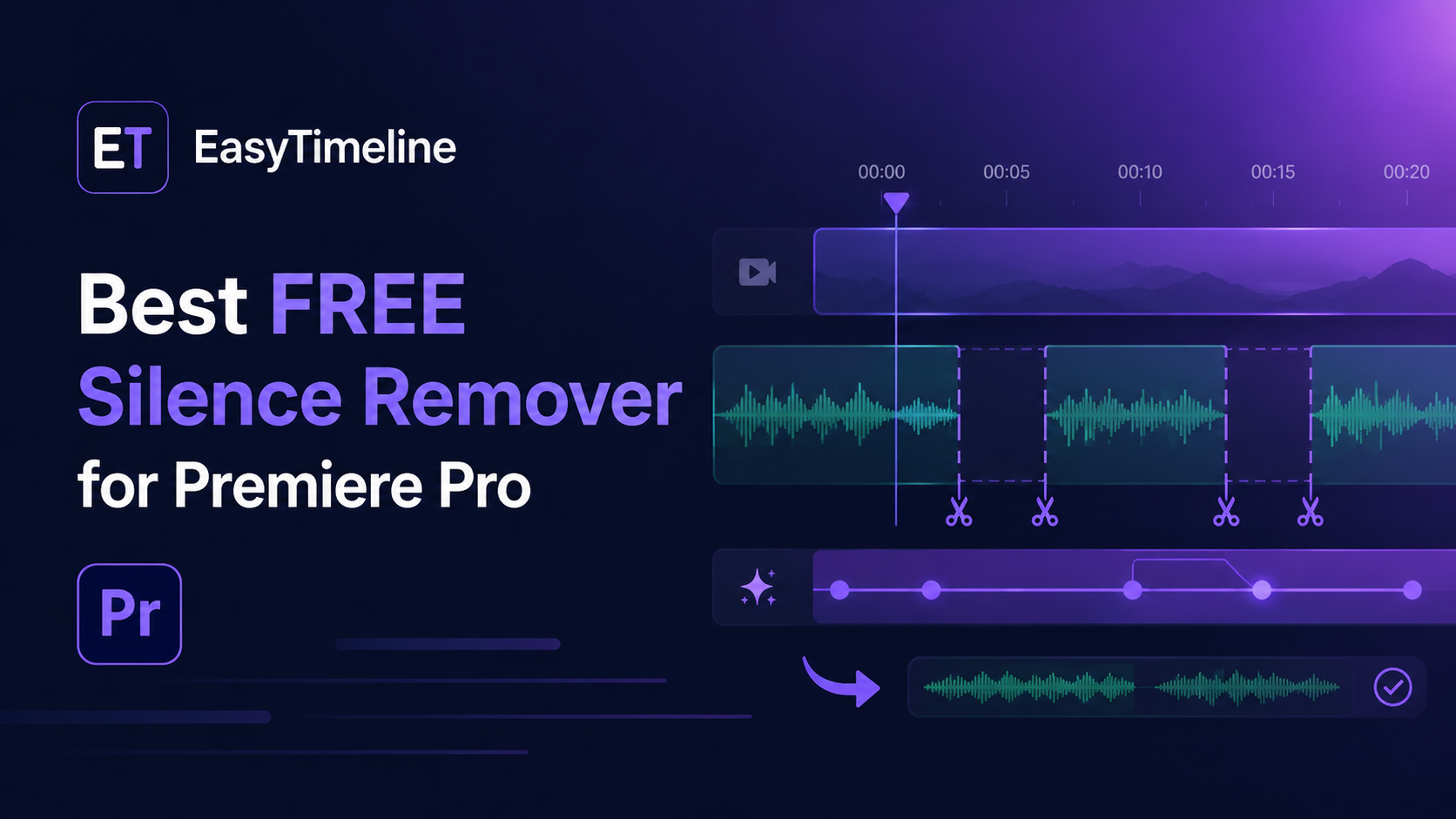
If you edit talking-head videos, interviews, podcasts, course lessons, or YouTube videos, silence removal is one of the fastest ways to improve pacing. The problem is that cutting silence manually in Premiere Pro is repetitive: find the pause, blade the clip, delete the gap, ripple the timeline, then repeat the same action dozens or hundreds of times.
That is exactly why a free silence remover for Premiere Pro can be such a high-value tool. Instead of treating every pause like a separate editing decision, you can scan the audio, detect silent sections based on a dB threshold, and remove the dead air in a controlled way.
Why silence removal matters
Silence is not always bad. Natural pauses help a speaker feel human. But long gaps, false starts, dead air, and awkward pauses make an edit feel slow. For content creators, the goal is not to remove every breath. The goal is to tighten the timeline without making the speaker sound robotic.
A good Premiere Pro silence remover should let you control the threshold, the minimum silence duration, and the amount of padding around each cut. That way, you can create a fast-paced social edit or a more natural long-form video depending on the project.
How EasyTimeline helps
EasyTimeline includes Auto Silent Remover in the free version. It scans audio tracks, detects quiet sections using your threshold settings, and removes silent gaps with ripple-safe edits. This is especially useful for creators who record long takes and then spend too much time cleaning the timeline before the real edit even starts.
For example, a 45-minute talking-head recording may include dozens of hesitations, pauses between points, and empty sections while the speaker checks notes. Instead of manually cutting every pause, Auto Silent Remover helps you create a tighter rough cut much faster.
Best use cases
- YouTube talking-head videos where pacing matters.
- Podcast video edits with long pauses or dead air.
- Online course lessons where students need a cleaner flow.
- Interview edits where you want to remove empty space before polishing.
- Short-form repurposing, where silence makes clips feel slow.
Recommended workflow
- Duplicate your sequence before running any automation.
- Start with a conservative dB threshold so you do not cut quiet words.
- Use a minimum silence duration that ignores tiny natural pauses.
- Leave a small amount of padding before and after cuts.
- Watch the first few cuts carefully, then apply the same settings to similar recordings.
The best setting depends on the microphone, room noise, speaker volume, and editing style. If the speaker is quiet or the background noise is high, use safer settings. If the recording is clean and the speaker has strong levels, you can usually be more aggressive.
Free vs paid silence workflows
Some advanced AI editing tools include silence removal as part of a bigger subscription. That can be useful for teams that need many AI features. But if your main pain point is dead air, a free Premiere Pro silence remover is often the best starting point.
EasyTimeline is useful here because you can start free with silence removal, black frame detection, shuffle, gaps, and splitting tools. Then, if your workflow grows, EasyTimeline Pro adds animated captions, transcript-based B-roll matching, command search, anchor-point tools, graph editing, unnesting, and faster timeline assembly.
Final recommendation
If silence removal is one of the first things you do after importing footage, automate it. You will still make creative decisions later, but you should not spend your best editing energy deleting empty space one gap at a time.
For Premiere Pro creators who want a simple starting point, EasyTimeline Free is a practical way to remove silence faster and clean up long recordings before the real edit begins.